The moment you unbox a shiny new smartphone is exhilarating. The fresh design, the crisp display, the promise of faster performance – it’s all incredibly exciting. But then reality hits: all your precious memories, vital contacts, important documents, and carefully curated apps are still stuck on your old device. The thought of losing anything, or worse, spending countless hours manually transferring everything, can quickly turn excitement into dread. If you’re wondering how to transfer data from old phone to new phone efficiently and without a hitch, you’ve come to the right place. BudgetTech India is here to guide you through this often-daunting process, ensuring a seamless transition to your new gadget in 2026.
Whether you’re upgrading from an Android to another Android, an iPhone to another iPhone, or even making the jump between operating systems, understanding the best data transfer methods is crucial. We’ll explore various techniques, from manufacturer-specific tools to cloud solutions and even third-party apps, breaking down each option so you can choose what works best for your specific needs and budget.
Quick Summary: Seamless Data Transfer Essentials
Top Picks: how to transfer data from old phone to new phone
SanDisk Ultra Dual Drive Go USB Type-C 128GB Pen Drive
- Dual USB Type-C and Type-A connectors
- USB 3.1 Gen 1 speed up to 150MB/s read
- Compact, swivel design for portability
₹1,200
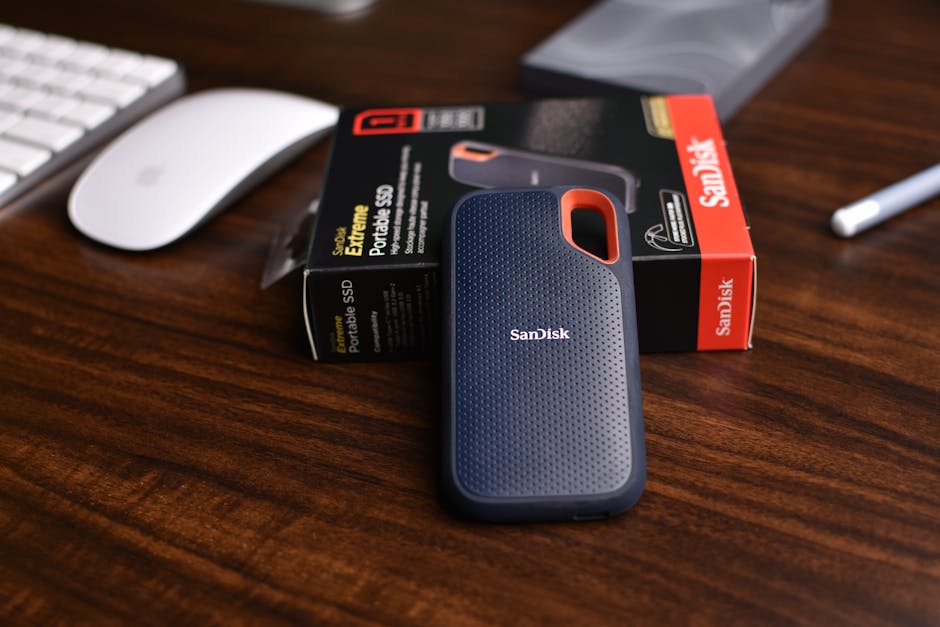
Samsung T7 Portable SSD 1TB
- Blazing fast USB 3.2 Gen 2 (up to 1,050 MB/s read)
- Compact, shock-resistant design
- Includes USB-C to C and USB-C to A cables
₹8,500
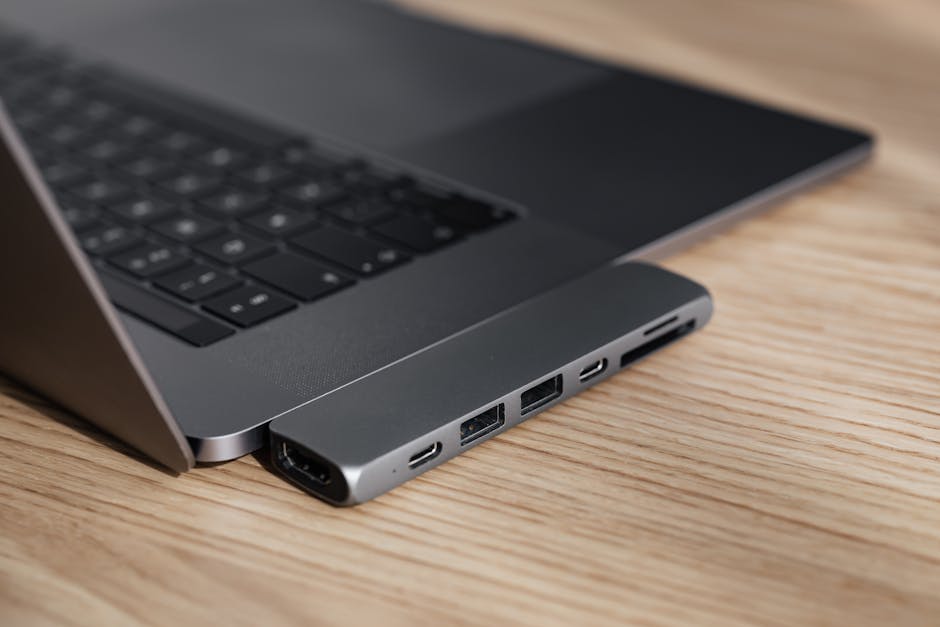
UGREEN USB C to USB A OTG Adapter
- Enables USB-A devices (pen drives, keyboards) to connect to USB-C phones
- Supports data transfer and charging
- Durable aluminum alloy casing
₹450

- Cloud Backup First: Always back up your essential data (contacts, photos, videos, documents) to Google Drive, iCloud, or another trusted cloud service before starting any transfer. This acts as a safety net.
- Manufacturer Tools are Your Best Bet: For same-OS transfers (Android to Android, iOS to iOS), tools like Samsung Smart Switch, OnePlus Clone Phone, Xiaomi Mi Mover, or Apple’s Quick Start are often the most comprehensive and easiest to use.
- WhatsApp Special Care: WhatsApp chat history requires a separate backup to Google Drive (Android) or iCloud (iPhone) and restore process; it’s not always included in general phone backups.
- Charge Both Phones: Ensure both your old and new phones are fully charged or connected to power throughout the data transfer process to prevent interruptions.
- Wipe Your Old Phone Securely: Once data transfer is complete and verified, perform a factory reset on your old phone to protect your privacy before selling or repurposing it.
Understanding Your Data Transfer Needs
Before diving into the “how-to,” it’s essential to understand what kind of data you’re dealing with. Not all data is created equal, and different methods might be better suited for specific types. Typically, your phone stores:
- Contacts: Arguably the most critical data. Most are synced to your Google account (Android) or iCloud (iPhone).
- Photos and Videos: These can take up significant storage and are often the most sentimental.
- Messages (SMS/MMS): Text messages, while less critical for some, hold conversations and verification codes.
- Call Logs: A record of your incoming and outgoing calls.
- Apps and App Data: While apps can be re-downloaded, their associated data (e.g., game progress, chat histories for apps like WhatsApp, Telegram) is vital.
- Documents and Files: PDFs, spreadsheets, downloaded files, and other personal documents.
- System Settings: Wi-Fi passwords, display preferences, home screen layouts.
Your transfer strategy will depend on whether you’re moving from Android to Android, iPhone to iPhone, or crossing the operating system divide. Each scenario has its optimal solutions, and BudgetTech India will cover them all.
Method 1: Cloud Backup & Restore – Your Digital Safety Net
The cloud is undoubtedly one of the most convenient and reliable ways to transfer data, especially for contacts, photos, and app data. It acts as a universal bridge, allowing you to restore your data onto almost any new device, regardless of brand, as long as you use the same account.
Google Drive & Google Photos (For Android Users)
For Android users, Google’s ecosystem is your best friend. Your Google account seamlessly backs up most of your essential data.
- Contacts: Almost all Android phones sync contacts to your Google account by default. On your old phone, go to Settings > Accounts > Google, tap your account, and ensure “Contacts” sync is enabled.
- Photos & Videos: Google Photos offers unlimited storage for “Storage saver” quality photos (formerly high quality) or generous paid plans for original quality. Ensure the Google Photos app on your old phone is set to back up your entire library.
- App Data & Settings: Android’s built-in backup (Settings > System > Backup) can back up app data, Wi-Fi passwords, and device settings to Google Drive. Make sure “Backup to Google Drive” is turned on.
- WhatsApp: This needs a separate backup. Open WhatsApp > Settings > Chats > Chat backup. Choose your Google account and tap “Back Up.” You can also set a daily, weekly, or monthly automatic backup frequency.
On your new Android phone: Simply sign in with the same Google account during setup. The phone will prompt you to restore data from a previous backup, including contacts, photos (from Google Photos), and app data. WhatsApp will ask you to restore chats from Google Drive after verification.
iCloud (For iPhone Users)
Apple’s iCloud is the equivalent for iPhone users, offering a comprehensive backup solution.
- Full Device Backup: On your old iPhone, go to Settings > [Your Name] > iCloud > iCloud Backup. Ensure “iCloud Backup” is toggled on and tap “Back Up Now.” This backs up almost everything: photos, videos, app data, device settings, iMessage, and more.
- Individual App Syncing: You can also choose which apps sync data to iCloud (e.g., Photos, Contacts, Notes) by going to Settings > [Your Name] > iCloud and toggling apps on/off.
- WhatsApp: Similar to Android, WhatsApp on iPhone requires its own iCloud backup. Open WhatsApp > Settings > Chats > Chat Backup. Tap “Back Up Now” and ensure your iCloud account is linked.
On your new iPhone: During the initial setup, choose “Restore from iCloud Backup.” Sign in with your Apple ID, select the most recent backup, and your new iPhone will start downloading all your data.
Other Cloud Services
Services like Microsoft OneDrive, Dropbox, and Amazon Photos also offer cloud storage for documents, photos, and videos. While not as integrated for full device backups as Google or iCloud, they are excellent for specific file types and cross-platform compatibility. Many Indian users prefer these for additional storage or sharing.
Pros & Cons of Cloud Backup & Restore
- Pros:
- Convenient: No cables needed; works over Wi-Fi.
- Reliable: Data is stored off-device, safe from physical damage.
- Cross-Platform (for some data): Google accounts work on both Android and iOS for contacts/photos (via Google Photos app).
- Automatic Backups: Set it and forget it, ensuring your data is always current.
- Easy Setup: New phone setup often integrates cloud restore seamlessly.
- Cons:
- Internet Dependent: Requires a stable and fast internet connection (which can be a challenge in some parts of India with limited Wi-Fi access).
- Time-Consuming: Large backups/restores can take hours, especially with slower Indian broadband speeds or mobile data limits.
- Storage Limits: Free tiers (15GB for Google, 5GB for iCloud) might not be enough for extensive photo/video libraries, requiring paid upgrades (e.g., Google One plans start from Rs 130/month for 100GB in India).
- Security Concerns: While generally secure, some users have privacy concerns about storing all data on third-party servers.
Method 2: Manufacturer-Specific Tools – Tailored for Your Brand
When you’re upgrading within the same brand (e.g., Samsung to Samsung, OnePlus to OnePlus), the manufacturer’s own data transfer tool is often the most efficient and comprehensive solution. These tools are designed to move almost everything, from apps and settings to contacts and media, with minimal fuss.
Samsung Smart Switch (Android to Android, or iOS to Samsung)
Samsung Smart Switch is arguably one of the best and most user-friendly tools for moving data to a new Samsung phone. It supports both wired (USB-C to USB-C cable or USB-C to USB-A adapter) and wireless transfers.
- Install Smart Switch: Ensure Smart Switch is installed on both your old and new phones (it’s often pre-installed on new Samsung devices).
- Connect Devices:
- Wireless: Place phones close to each other. Open Smart Switch on both, select “Send data” on the old phone and “Receive data” on the new.
- Wired: Connect the two phones using a USB-C to USB-C cable or a USB-C to USB-A adapter with your old phone’s charging cable.
- Select Data: On the old phone, select all the data you wish to transfer (contacts, messages, apps, photos, videos, even home screen layout).
- Initiate Transfer: Confirm the transfer on both phones and wait for the process to complete. This can take a while for large data sets.
Smart Switch is praised for its ability to transfer almost everything, including app data for many popular apps, and even device settings. This makes the new phone feel instantly familiar.
OnePlus Clone Phone (OnePlus to OnePlus, or Other Android to OnePlus)
OnePlus users benefit from Clone Phone, a simple yet effective tool for migrating data.
- Open Clone Phone: On your new OnePlus, open the Clone Phone app (or find it in Settings). Select “This is the new phone.”
- Connect to Old Phone: On your old phone (OnePlus or other Android), open Clone Phone and select “This is the old phone.” Scan the QR code displayed on the new phone.
- Select Data: Choose the data you want to transfer (contacts, messages, photos, apps, etc.).
- Start Transfer: Confirm and let the transfer complete.
Clone Phone is known for its speed and ease of use, making the transition to a new OnePlus device very smooth.
Xiaomi Mi Mover (Xiaomi/Redmi/POCO to Xiaomi/Redmi/POCO)
For Xiaomi, Redmi, and POCO users, Mi Mover is the go-to app for data migration.
- Open Mi Mover: On both devices, open the Mi Mover app (usually found in Settings > About Phone or Additional settings).
- Identify Devices: On the new phone, select “I’m a recipient.” On the old phone, select “I’m a sender.”
- Scan QR Code: The new phone will display a QR code; scan it with the old phone to establish a connection.
- Choose Data: Select the categories of data you wish to transfer (pictures, videos, apps, contacts, messages, etc.).
- Start Transfer: Initiate the transfer and wait.
Mi Mover handles a wide array of data types and is generally quite reliable for users within the Xiaomi ecosystem.
Apple’s Quick Start (iPhone to iPhone)
For iPhone users, Apple’s Quick Start feature makes setting up a new iPhone incredibly simple, especially if you have an old iPhone nearby.
- Place Phones Together: Turn on your new iPhone and place it near your old iPhone (ensure Bluetooth is enabled on both).
- Quick Start Prompt: A “Set Up New iPhone” prompt will appear on your old iPhone. Tap “Continue.”
- Scan Animation: An animation will appear on your new iPhone. Use your old iPhone’s camera to scan it.
- Face ID/Touch ID Setup: You’ll be prompted to set up Face ID or Touch ID on your new iPhone.
- Transfer Data: You’ll then have the option to transfer data directly from your old iPhone to your new one wirelessly, or restore from an iCloud backup. Choosing direct transfer is generally faster.
Quick Start is incredibly intuitive and transfers almost everything, including app data, home screen layout, and settings, making the new iPhone feel like an exact clone of your old one.
Pros & Cons of Manufacturer-Specific Tools
- Pros:
- Comprehensive: Transfers a wider range of data, often including app data and system settings.
- User-Friendly: Designed for specific devices, making the process intuitive.
- Fast (especially wired): Direct phone-to-phone transfer can be quicker than cloud downloads.
- Reliable: Fewer compatibility issues since they are optimized for the brand’s hardware and software.
- Cons:
- Brand-Specific: Only works best when upgrading within the same brand or OS (e.g., Samsung to Samsung). Limited functionality for cross-brand transfers.
- Requires Both Phones: Both devices need to be operational and charged during the transfer.
- Can be Slow (wireless): Wireless transfers can be affected by interference and distance.
Method 3: PC-Based Transfer – The Traditional Approach
While cloud and manufacturer tools have become dominant, transferring data via a computer remains a reliable method, especially for large media files or when you need granular control over what gets moved. This is particularly useful if you’re switching between Android and iPhone for photos and videos.
USB Cable + File Explorer (For Android)
This is the most basic method for Android users to transfer files to and from a PC.
- Connect Phone to PC: Use a USB cable to connect your old Android phone to your Windows PC.
- Enable File Transfer: On your phone, pull down the notification shade and tap the “USB charging” notification. Change the USB connection mode to “File Transfer” (MTP).
- Access Files: On your PC, open “This PC” or “My Computer.” Your phone should appear as a portable device. Double-click to browse its internal storage and SD card.
- Copy Data: Navigate to folders like DCIM (for photos/videos), Downloads, Documents. Copy desired folders/files to a temporary folder on your PC.
- Transfer to New Phone: Connect your new Android phone to the PC, enable “File Transfer,” and copy the data from your PC to the appropriate folders on the new phone.
For Mac users, you’ll need the free Android File Transfer application to browse your Android phone’s files.
iTunes/Finder (For iPhone)
While iCloud is primary, iTunes (on Windows) or Finder (on macOS Catalina and later) can also be used for local backups and syncing media.
- Connect Old iPhone: Connect your old iPhone to your PC/Mac with a USB cable.
- Backup: Open iTunes/Finder, select your iPhone, and choose to “Back Up Now” to your computer. Ensure “Encrypt local backup” is selected and set a password for secure backup of sensitive data like health data and saved passwords.
- Connect New iPhone: Connect your new iPhone and during setup, choose “Restore from Mac or PC Backup.” Select the backup you just created.
This method creates a full local backup, which can sometimes be faster to restore than an iCloud backup if you have a slow internet connection.
Pros & Cons of PC-Based Transfer
- Pros:
- Granular Control: You decide exactly which files and folders to move.
- No Internet Needed (for direct transfer): Ideal if you have limited or slow internet access.
- Good for Large Files: Direct USB transfer is often faster for massive photo/video libraries.
- Cross-Platform Potential: Your PC acts as a neutral intermediary for transferring media between Android and iOS (though not for apps/settings).
- Cons:
- Manual Process: More effort involved compared to automated tools.
- Limited Data Types: Primarily for media files and documents; doesn’t transfer apps, app data, SMS, call logs, or settings easily.
- Software Required for Mac: Android File Transfer is needed for Mac users.
- Requires a PC: Not everyone has easy access to a personal computer.
Method 4: Third-Party Data Transfer Apps – Bridging the Gaps
When manufacturer tools aren’t an option (e.g., cross-brand Android transfer) or you need a specific type of transfer, third-party apps can fill the void. These range from free peer-to-peer sharing apps to paid professional software suites.
Popular Free Peer-to-Peer Apps (e.g., Files by Google, ShareIt)
Apps like Files by Google (formerly Google Files Go) and ShareIt gained immense popularity in India for their ability to transfer files offline, quickly, and across devices using Wi-Fi Direct. While ShareIt has seen some security concerns and has been banned in India, Files by Google remains a strong, secure alternative.
- Install App: Install Files by Google on both your old and new Android phones.
- Enable Share Feature: Open Files by Google, go to the “Share” tab. Select “Send” on the old phone and “Receive” on the new phone.
- Connect Devices: The app will create a Wi-Fi hotspot on one phone and allow the other to connect to it directly, bypassing internet data usage.
- Select & Transfer: Choose the files (photos, videos, documents, even some apps) you want to send and initiate the transfer.
Note: These apps are primarily for media and documents. They generally don’t transfer contacts, messages, call logs, or app data.
Paid Professional Software (e.g., Dr.Fone, MobileTrans)
For those needing a more comprehensive, cross-platform solution, several paid desktop software options offer advanced data transfer capabilities. These typically connect both phones to a PC and manage the transfer.
- Wondershare Dr.Fone: Offers a “Phone Transfer” module that can move contacts, messages, photos, videos, music, and apps between Android and iOS devices, and between different Android/iOS devices. It’s a robust solution but comes with a subscription or one-time license fee (starting around Rs 3,000 for a toolkit).
- Wondershare MobileTrans: Specializes in phone-to-phone transfer, WhatsApp transfer, and backup/restore. It supports a wide range of data types and claims to be compatible with thousands of devices. Similar pricing structure to Dr.Fone.
Comparison Table: Third-Party Data Transfer Solutions
Here’s a quick look at some popular options, focusing on their utility for Indian users:
| Feature | Files by Google | Wondershare MobileTrans | Samsung Smart Switch |
|---|---|---|---|
| Primary Use Case | Offline file sharing (photos, videos, documents, some apps) between Androids. | Comprehensive data transfer (contacts, messages, apps, media) between Android & iOS, backup/restore. | Full data transfer to new Samsung phone (Android, iOS compatible). |
| Cost (approx. INR) | Free | Starts from ~Rs 2,500 for a 1-year license (perpetual license higher). | Free |
| Cross-Platform Support | Android to Android (files only). | Android to iOS, iOS to Android, Android to Android, iOS to iOS. | Android to Samsung, iOS to Samsung. |
| Data Types Transferred | Photos, videos, audio, documents, APKs. | Contacts, messages, call logs, photos, videos, music, apps, app data (incl. WhatsApp chat history). | Contacts, messages, call logs, photos, videos, music, apps, system settings, home screen layout. |
| Requires Internet? | No (uses Wi-Fi Direct for transfer). | Yes (for software download, but transfer is PC-based). | Optional (wired transfer available, cloud backup needs internet). |
| Ease of Use | Very easy for basic file transfer. | Moderately easy, PC software interface. | Very easy, especially for Samsung users. |
| Security & Privacy | High (Google product). | Generally good, reputable company. | High (manufacturer-backed). |
| Where to Get | Google Play Store | Wondershare website, authorized resellers. | Google Play Store, pre-installed on Samsung phones. |
Pros & Cons of Third-Party Data Transfer Apps
- Pros:
- Cross-Platform (paid tools): Excellent for moving between Android and iOS.
- Offline Sharing (free apps): Files by Google is great for sharing large files without internet.
- Comprehensive (paid tools): Can transfer a wider array of data types than manual PC methods.
- Specific Functions: Some tools specialize in WhatsApp transfer, which is a common need in India.
- Cons:
- Cost (paid tools): Can be expensive for a one-time use.
- Security Concerns (some free apps): Be wary of lesser-known free apps; stick to reputable ones like Files by Google.
- Software Installation: Paid tools often require PC software installation.
- Variable Reliability: Quality and effectiveness can vary significantly between different third-party solutions.
Preparing Your Old Phone and New Phone for Transfer
A little preparation goes a long way in ensuring a smooth and successful data transfer. Don’t skip these steps!
- Charge Both Phones: Ensure both your old and new devices are at least 80% charged, or better yet, plugged into power. Data transfer can be resource-intensive and lengthy.
- Clean Up Your Old Phone: Before moving everything, consider deleting unnecessary files, old photos, duplicate contacts, and unused apps from your old phone. This reduces transfer time and ensures your new phone starts with less clutter.
- Update Operating Systems: Ensure both phones are running the latest available software updates. This helps prevent compatibility issues during transfer.
- Connect to Stable Wi-Fi: For cloud-based or wireless transfers, a strong and stable Wi-Fi connection is paramount. Avoid public Wi-Fi for sensitive data transfers.
- Backup WhatsApp Separately: As mentioned, WhatsApp chats are crucial for many Indian users. Always perform a manual backup to Google Drive or iCloud just before initiating the full phone transfer.
- Check SIM Card & SD Card:
- SIM Card: If your new phone uses a different SIM size (e.g., micro to nano), get a new SIM or an adapter from your network provider (Jio, Airtel, Vi).
- SD Card: If your old phone has an SD card, you can simply remove it and insert it into your new phone (if it has an SD card slot). However, remember that some apps might not recognize data on the SD card automatically, and it’s generally better to transfer critical data to internal storage or the cloud.
- Disable Screen Lock: Temporarily disable screen lock (PIN, pattern, fingerprint, Face ID) on both phones during the transfer process to prevent interruptions. Remember to re-enable it afterwards.
Troubleshooting Common Data Transfer Issues
Even with the best preparation, things can sometimes go wrong. Here’s what to do if you encounter common problems:
- Slow Transfer Speeds:
- Wireless: Move phones closer, ensure no obstructions, and disconnect other devices from the Wi-Fi network.
- Wired: Try a different USB cable, preferably an original or high-quality one. Ensure the USB ports on both devices and the PC are clean.
- Cloud: Your internet speed is the bottleneck. Consider transferring large files via PC or a direct method if possible. NDTV Gadgets often highlights the importance of good connectivity for cloud services in India.
- Incomplete Transfers:
- Check Storage: Ensure your new phone has enough storage space for all the data.
- Restart & Retry: Sometimes a simple restart of both phones and retrying the process can fix glitches.
- One Category at a Time: If a full transfer fails, try transferring data in smaller batches (e.g., photos first, then apps).
- Manufacturer Support: If using a brand-specific tool, check the manufacturer’s support pages or contact their customer service.
- Compatibility Problems (Especially Cross-OS):
- Expect Limitations: When moving from Android to iOS or vice-versa, understand that some data (like app data, SMS/iMessage threads) might not transfer perfectly. Android Authority frequently publishes guides on cross-platform migration.
- Use Intermediate Tools: For photos/videos, use a PC. For contacts, ensure they’re synced to Google or iCloud. For WhatsApp, use dedicated third-party tools or the app’s native backup.
- Apps Not Transferring:
- Many apps need to be re-downloaded from the Play Store or App Store. What often transfers is the app icon and a placeholder, not the actual app data.
- For crucial app data (like game progress), check if the app itself offers cloud sync or backup options.
- What to do if all else fails:
- Visit a Service Centre: If your data is extremely valuable and you can’t manage the transfer, visiting an authorized service centre for your new phone’s brand or a reputable local mobile repair shop might be an option. Be prepared for potential costs.
- Professional Data Recovery: For truly critical, lost data, consider professional data recovery services, but these are often very expensive.
Data Security and Privacy During Transfer
Protecting your personal data is paramount, especially when switching devices. Here are key security considerations:
- Use Secure Networks: When transferring wirelessly or using cloud backups, always use a private, secure Wi-Fi network. Avoid public Wi-Fi hotspots, as they can be vulnerable to eavesdropping.
- Encrypt Backups: If using PC-based backups (like iTunes/Finder), always encrypt your local backup with a strong password. This protects sensitive data like saved passwords and health information.
- Verify Data: After the transfer is complete, thoroughly check your new phone to ensure all essential data (contacts, photos, messages, app data) has successfully migrated. Open a few apps, check your gallery, and review your contacts list.
- Wipe Your Old Phone Securely: This is perhaps the most critical step for privacy. Once you’re certain all data is on your new phone, perform a factory reset on your old device.
- Android: Go to Settings > System > Reset options > Erase all data (factory reset). Ensure you tick the option to erase data from the SD card if applicable.
- iPhone: Go to Settings > General > Transfer or Reset iPhone > Erase All Content and Settings. You’ll need your Apple ID password.
This action permanently deletes all your personal data, making it unrecoverable by casual users. For extreme security, some experts suggest overwriting the phone’s storage with junk data after a factory reset, but for most users, a standard factory reset is sufficient.
Frequently Asked Questions About Data Transfer
What is the fastest way to transfer data from old phone to new phone?
For same-OS transfers (Android to Android, iPhone to iPhone), manufacturer-specific tools like Samsung Smart Switch, OnePlus Clone Phone, or Apple’s Quick Start, especially when using a direct wired connection (if supported), are generally the fastest. For large media files, a direct USB transfer to a PC and then to the new phone can also be very quick.
Can I transfer WhatsApp chats from Android to iPhone or vice versa?
Transferring WhatsApp chats between Android and iOS used to be very difficult, often requiring paid third-party tools like MobileTrans. However, WhatsApp has introduced official support for transferring chat history from iPhone to Android (during initial setup of a new Android phone) and more recently, from Android to iPhone. For Android to iPhone, you need the ‘Move to iOS’ app. Always check the latest official WhatsApp guidance for the most up-to-date and reliable method.
Do I need an internet connection to transfer data?
It depends on the method. Cloud backups (Google Drive, iCloud) absolutely require a stable internet connection. Manufacturer-specific tools often offer wireless (Wi-Fi Direct) or wired (USB cable) options, where wireless needs Wi-Fi but doesn’t consume internet data, and wired needs no internet. PC-based transfers also don’t require an internet connection for the actual file movement.
Will my apps and their data transfer automatically?
For same-OS transfers using manufacturer tools (like Smart Switch or Quick Start), many apps and their associated data (e.g., login states, game progress if not cloud-synced) will transfer. However, some apps, especially banking or security apps, often require re-logging in or re-setup for security reasons. For cross-OS transfers, you’ll almost always need to re-download apps and manually set them up, as app data structures differ significantly between Android and iOS.
What should I do with my old phone after transferring data?
After successfully transferring and verifying all your data on the new phone, the most important step is to perform a factory reset on your old phone to erase all personal information. Once wiped, you can consider selling it (on platforms like Cashify or OLX in India), trading it in, recycling it responsibly, or repurposing it as a media player, security camera, or backup device.
Our Verdict
Navigating the journey of how to transfer data from old phone to new phone doesn’t have to be a headache. For the average Indian user in 2026, where budget and reliability are key, the consensus pick is to recommend a multi-pronged approach based on your specific situation.
If you’re upgrading within the same brand and operating system (e.g., Samsung to Samsung, iPhone to iPhone), your manufacturer’s dedicated tool (Smart Switch, Clone Phone, Quick Start) is hands down the best and most comprehensive solution. These tools are designed for seamless migration, transferring almost everything with minimal effort. They often support direct wireless or wired connections, making them efficient even with inconsistent internet. As Gadgets360 often points out, these first-party solutions are almost always the most reliable.
For crucial data like contacts and photos, always maintain a robust cloud backup (Google Drive/Photos for Android, iCloud for iPhone) as your primary safety net. This ensures your most valuable assets are safe, irrespective of your device’s physical state or transfer mishaps. Remember to handle WhatsApp backups separately and diligently, given its omnipresence in Indian communication.
If you’re making a cross-platform switch (Android to iPhone or vice versa), be prepared for a more manual process. Leverage cloud services for contacts and photos, use official WhatsApp transfer methods if available, and consider PC-based transfers for large media files. Paid third-party tools like MobileTrans can be an option for those who need a comprehensive solution for cross-OS app and message transfers, but evaluate the cost against your specific needs.
Finally, always prioritize security. Verify your data on the new phone and, without fail, factory reset your old device. This ensures your digital footprint remains private and protected. With these strategies, your transition to a new phone will be smooth, secure, and stress-free.
Want more? Browse our gadgets under Rs 10,000 section.
About the Author