

Last Updated: 2026-04-09
In the bustling digital landscape of 2026, our Android smartphones are more than just communication devices; they’re our personal assistants, entertainment hubs, and often, our connection to the world. A healthy battery is the lifeblood of this experience, ensuring our devices keep pace with our demanding lives. But how often do you truly stop to consider the health of your phone’s battery? More importantly, do you know how to check phone battery health Android devices offer, especially as they age?
Here at BudgetTech India, we understand that a dying battery can be a major headache, leaving you scrambling for a charger at the most inconvenient times. While Apple makes it relatively straightforward for iPhone users to check battery health percentage, Android users often find themselves navigating a more fragmented landscape of options. Fret not, fellow tech enthusiasts! This comprehensive guide will demystify the process, providing you with all the tools and knowledge you need to accurately assess your Android phone’s battery health, understand what the numbers mean, and even prolong its lifespan.
Whether you own a Samsung Galaxy, a Xiaomi Redmi, a OnePlus, or any other Android device popular across India, understanding your battery’s condition is crucial for optimal performance and making informed decisions about replacements or upgrades. Let’s dive deep into the world of Android battery diagnostics.
Quick Summary: How to Check Your Android Phone’s Battery Health
Top Picks: how to check phone battery health Android
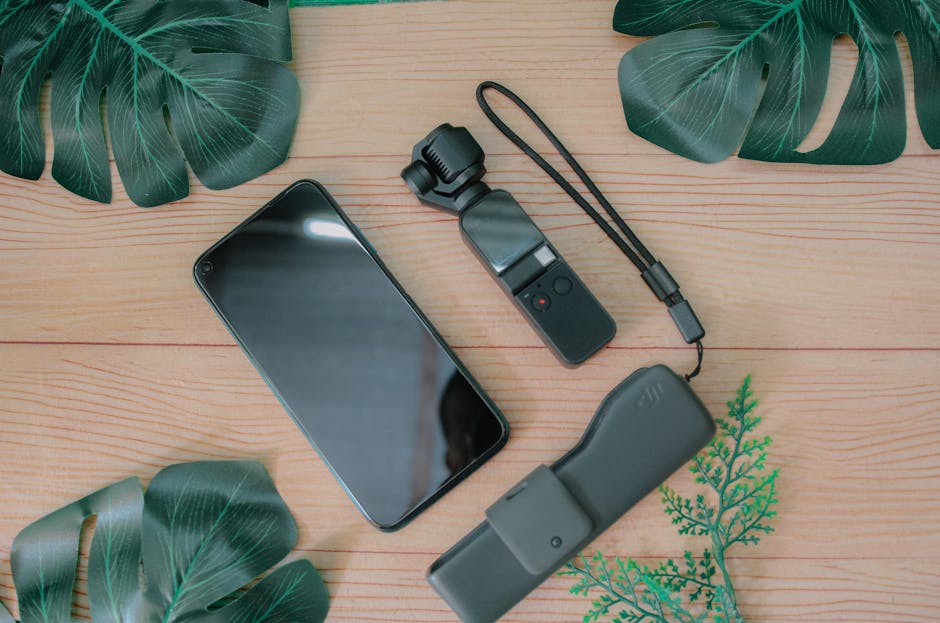
KWS-MX18 USB Voltmeter Ammeter Tester
- Measures real-time voltage and current during charging
- Calculates total charged capacity (mAh) and energy (Wh)
- Monitors charging speed and stability for battery health insights
- Supports both USB-A and USB-C connections
₹850
FNIRSI FNB48 USB C PD Tester
- Comprehensive analysis of USB-C Power Delivery (PD) and Quick Charge protocols
- High-precision measurement of voltage, current, power, and capacity
- Detailed data logging and graphical display for battery performance tracking
- Helps identify charging inefficiencies and potential battery degradation
₹2,600
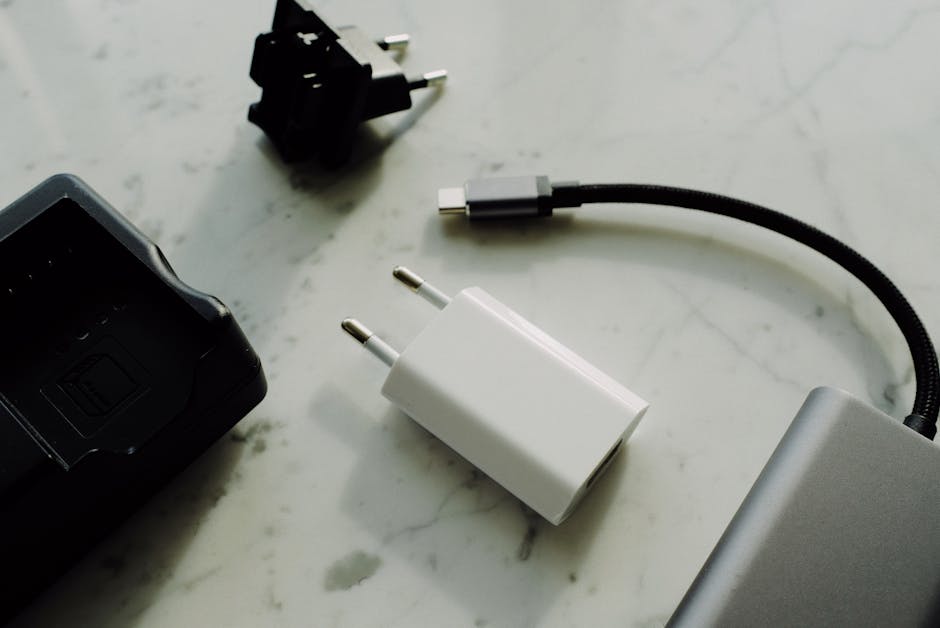
JYE Tech USB C Digital Power Meter
- Monitors input/output voltage and current for USB-C devices
- Measures delivered battery capacity (mAh) over time
- Supports various fast charging protocols for compatibility checks
- Compact design with clear OLED display for easy reading
₹1,400

- Check Device Settings: Most modern Android phones (especially Samsung, Xiaomi, OnePlus) offer built-in battery usage statistics and sometimes a dedicated “Battery Health” section within Settings.
- Use Dial Codes: Secret diagnostic codes (like *#*#4636#*#*) can sometimes reveal hidden battery information, though their functionality varies by manufacturer and Android version.
- Third-Party Apps: Apps like AccuBattery or CPU-Z provide detailed insights into battery capacity, wear level, and charging/discharging cycles, often offering a “health percentage.”
- Manufacturer Service Centres: For the most accurate assessment, especially if you suspect a serious issue, visiting an authorised service centre is always an option.
- Monitor Usage Patterns: Pay attention to how quickly your battery drains and how hot your phone gets during use; these are often early indicators of declining health.
Why Battery Health Matters for Your Android Phone

Think of your phone’s battery as its heart. Just like any organ, it degrades over time, affecting the performance and usability of your device. A healthy battery ensures consistent power delivery, preventing unexpected shutdowns and maintaining peak performance for demanding applications. When battery health declines, you’ll experience:
- Reduced Battery Life: Your phone won’t last as long on a single charge, forcing you to carry a power bank or constantly seek charging points. This is particularly inconvenient for Indian users who often rely on their phones for long commutes or during power cuts.
- Slower Performance: Modern Android phones often employ “throttling” – intentionally slowing down the processor to prevent unexpected shutdowns when the battery can no longer supply stable power. This can make your phone feel sluggish and unresponsive.
- Unexpected Shutdowns: Your phone might suddenly power off even when the battery indicator shows a significant charge, especially during intensive tasks or cold weather.
- Overheating: A failing battery can sometimes generate more heat than usual, which is not only uncomfortable but can also damage other internal components.
- Swelling: In severe cases, a degraded battery can swell, pushing against the phone’s display or back panel. This is a serious safety hazard and requires immediate attention.
Understanding your battery’s health isn’t just about convenience; it’s about getting the most out of your investment and ensuring the safety of your device. For many Indian users, upgrading a phone isn’t an annual affair, making battery longevity even more critical.
Understanding Battery Degradation: The Science Behind It

At the core of every modern Android phone is a Lithium-ion (Li-ion) battery. These batteries are fantastic for their energy density and rechargeability, but they aren’t immortal. Battery degradation is a natural, irreversible process influenced by several factors:
- Charge Cycles: Each time you fully charge and discharge your battery, it completes a “charge cycle.” Li-ion batteries have a finite number of these cycles (typically 300-500 cycles before significant degradation). While you don’t need to track individual cycles, it’s a fundamental aspect of their lifespan.
- High Temperatures: Heat is the arch-nemesis of Li-ion batteries. Exposing your phone to high temperatures (e.g., leaving it in a car dashboard in Indian summer, heavy gaming while charging) accelerates chemical degradation.
- Full Charge/Discharge Cycles: Constantly charging to 100% and letting it drop to 0% puts more stress on the battery. Maintaining the charge between 20% and 80% is often recommended for longevity.
- Fast Charging: While convenient, the higher voltage and current of fast charging can generate more heat, potentially impacting long-term battery health, especially if not managed well by the phone’s internal systems.
- Age: Even if unused, batteries degrade simply due to chemical aging. A phone bought in 2023 will naturally have a healthier battery than one bought in 2020, assuming similar usage.
Knowing these factors helps you not only check your battery’s health but also adopt habits that can slow down its inevitable decline.
Official Methods to Check Battery Health on Android (Manufacturer-Specific)
Unlike iOS, Android doesn’t have a universal, standardised “Battery Health” percentage accessible through settings for all devices. However, many manufacturers, especially those popular in India, have integrated their own tools.
Samsung Galaxy Phones
Samsung, a dominant player in the Indian smartphone market, has made strides in providing battery insights. While older models might only show usage statistics, newer Galaxy devices often feature a “Diagnostics” tool within the Samsung Members app.
- Open the Samsung Members app (pre-installed on most Galaxy phones).
- Tap on “Get Help” or “Support” at the bottom.
- Select “Phone Diagnostics.”
- Look for “Battery Status” or “Battery Health.”
- Here, you’ll often see information like “Life” (Good, Normal, Weak), “Capacity,” and whether the battery requires action.
This method provides a general idea of your battery’s condition, giving you a quick “good” or “bad” assessment.
Xiaomi / Redmi / POCO Phones
Xiaomi, with its vast user base in India, offers a slightly more cryptic but often effective method through its MIUI system. While a direct “health percentage” isn’t always visible, you can find battery status information.
- Go to Settings > About phone > All specs.
- Tap repeatedly on “Internal storage” (usually 4-5 times) until a hidden menu appears. This is often the “CIT menu” or “Hardware test” menu.
- Look for “Battery info” or “Battery & charger test.”
- Here you might find details like “Battery status,” “Charging status,” and sometimes “Battery health” (e.g., “Good”).
Alternatively, some MIUI versions might show battery capacity information under Settings > Battery > Battery usage, though this is primarily for app consumption, not health.
OnePlus Phones
OnePlus phones, known for their performance, have also integrated battery health monitoring, albeit not always with a clear percentage.
- Go to Settings > Battery.
- You’ll see graphs of battery usage and screen-on time. Some newer OxygenOS versions might have a “Battery Health” option within this menu, similar to Samsung.
- If not, you can install the official OnePlus Diagnostic app (sometimes available on the Play Store or as an APK from trusted sources like XDA Developers). This app provides a detailed “Battery State” and “Battery Health” percentage.
It’s worth noting that the availability and depth of these features can vary significantly with Android versions and custom OEM skins. Always check your specific phone’s settings first.
Third-Party Apps for Deeper Battery Insights
When built-in settings fall short, third-party apps come to the rescue, offering a more universal approach to how to check phone battery health Android devices possess. These apps often leverage system data to estimate capacity and wear.
1. AccuBattery (Highly Recommended)
AccuBattery is arguably the most popular and reliable third-party app for battery health monitoring on Android. It doesn’t just show you current stats; it learns about your battery over time.
- How it works: AccuBattery measures the actual capacity delivered to your battery during charging sessions. Over several charge cycles, it builds a profile of your battery’s “actual capacity” compared to its “design capacity.”
- Key features:
- Battery Health: Shows an estimated battery health percentage (e.g., 85% of original capacity).
- Wear: Tracks battery wear with each charge cycle.
- Charging Speed: Monitors actual charging current.
- Usage Statistics: Detailed app battery usage.
- Alarm: Notifies you when your battery reaches a certain charge level (e.g., 80%) to help you avoid overcharging.
- Accuracy: While not 100% precise (only dedicated hardware can be), it’s considered one of the most accurate software-based estimations. It requires a few charging cycles to calibrate effectively.
- Availability: Free with ads on the Google Play Store, with a paid Pro version for ad-free experience and extra features.
2. CPU-Z
While primarily a hardware information app, CPU-Z also provides some basic battery information.
- Key features:
- Battery Health: Displays “Good,” “Bad,” or “Overheating.”
- Level: Current charge percentage.
- Status: Charging/Discharging.
- Technology: Li-ion, Li-Po, etc.
- Temperature & Voltage: Real-time readings.
- Limitations: It doesn’t estimate actual capacity or provide a health percentage like AccuBattery. It’s more of a quick status check.
- Availability: Free on the Google Play Store.
3. GSam Battery Monitor
GSam Battery Monitor is another powerful app that offers extensive battery usage statistics and some health indicators.
- Key features:
- Detailed app and hardware usage.
- Temperature and voltage monitoring.
- Time remaining estimates.
- While it doesn’t give a direct “health percentage” in the same way as AccuBattery, its detailed historical data can help you infer degradation over time.
- Availability: Free with some limitations, paid version available.
When using third-party apps, remember that they rely on software estimations. For the most accurate results with apps like AccuBattery, use them consistently over several weeks. A report by Android Authority often highlights AccuBattery as a top choice for its detailed analysis.
Using Dial Codes: The Hidden Android Diagnostics
Android devices sometimes have hidden diagnostic menus accessible via specific dialer codes. These codes can reveal a wealth of system information, including battery status. However, their functionality is highly dependent on your phone’s manufacturer and Android version.
The Universal Code: *#*#4636#*#*
This is the most well-known diagnostic code, and it often works on a variety of Android phones, though its output can vary.
- Open your phone’s dialer app.
- Type *#*#4636#*#*.
- Immediately after the last asterisk, a “Testing” menu should appear. You don’t need to press the call button.
- Look for “Battery information” or “Battery info.”
- Here, you might find details like:
- Battery Status: Charging, Discharging, Not Charging.
- Power Plug: AC, USB, Wireless.
- Battery Level: Current percentage.
- Battery Scale: Usually 100.
- Battery Health: Often displays “Good,” but can also show “Overheat,” “Cold,” “Dead,” “Over Voltage,” “Unspecified failure.”
- Voltage & Temperature: Current readings.
- Technology: Li-ion, etc.
- Uptime: How long the phone has been on.
Important Considerations:
- This code might not work on all devices. Some manufacturers (like Samsung on newer models) have disabled or changed its functionality.
- It typically only shows a generic “Good” status rather than a specific capacity percentage. It’s more of a health indicator for immediate issues rather than long-term degradation.
- If the menu doesn’t appear, the code is likely not supported on your device. Do not try random codes found online, as they could potentially cause issues.
While these codes offer a quick peek, for a more comprehensive understanding of your battery’s true capacity, third-party apps or manufacturer-specific diagnostics are usually more informative.
Interpreting Your Battery Health: What Do the Numbers Mean?
Once you’ve used one of the methods above, you’ll get some data. But what do “Good,” “80% capacity,” or “Normal” actually mean for your daily usage?
- “Good” / “Normal” Status: This usually means your battery is functioning within expected parameters for its age. It doesn’t necessarily mean 100% health, but rather that there are no critical issues like swelling or a dead cell.
- Battery Health Percentage (e.g., 85%): This is the most useful metric, primarily provided by apps like AccuBattery or some OEM diagnostics. It indicates that your battery can currently hold 85% of its original design capacity.
- 90-100%: Excellent. Your battery is relatively new or very well-maintained.
- 80-90%: Good. Typical for a phone that’s 1-2 years old. You might notice a slight decrease in battery life, but it’s generally manageable.
- 70-80%: Fair. Your battery is showing significant signs of wear. You’ll likely experience noticeable battery life reduction and possibly performance throttling. This is often the threshold where many users consider a replacement.
- Below 70%: Poor. Your battery is nearing the end of its useful life. Expect frequent charging, performance issues, and potential unexpected shutdowns. Replacement is highly recommended.
- Voltage and Temperature Readings: These are real-time technical metrics.
- Voltage: A healthy Li-ion battery typically operates between 3.7V and 4.4V. Significant fluctuations or readings outside this range could indicate an issue.
- Temperature: Your battery should generally stay below 40°C (104°F) during normal use. Higher temperatures, especially above 45°C (113°F) during non-intensive use, are a red flag for potential issues or excessive wear. Given India’s climate, monitoring temperature is especially important.
Don’t panic if your battery isn’t at 100% after a year. Degradation is normal. The key is to understand where your battery stands and if it’s still meeting your needs.
Practical Tips to Maintain Your Android Battery’s Longevity
Knowing how to check phone battery health Android devices offer is only half the battle. The other half is taking proactive steps to preserve it. Here are some actionable tips, especially relevant for Indian users:
- Avoid Extreme Temperatures: India’s summers can be brutal. Never leave your phone in direct sunlight, in a hot car, or near heat sources. Conversely, extreme cold can also stress the battery, though less common here.
- Optimal Charging Habits:
- The 20-80 Rule: Try to keep your charge level between 20% and 80%. Avoid letting it drop to 0% regularly and don’t always charge it to 100%. Many modern phones have “Optimised Charging” features that learn your habits and slow down charging when nearing 100% overnight.
- Avoid Overnight Charging (if possible): While modern phones have protection circuits, continuous “trickle charging” at 100% can still generate heat and stress the battery over many years.
- Use Original or Certified Chargers: Cheap, uncertified chargers can deliver unstable voltage or current, damaging your battery. Always use the charger that came with your phone or a reputable third-party brand.
- Limit Fast Charging: Use fast charging only when absolutely necessary. For overnight charging, consider using a standard charger or a power brick with lower wattage. Some phones even allow you to disable fast charging in settings.
- Manage Screen Brightness: The display is a major power hog. Keep brightness as low as comfortably possible and use adaptive brightness.
- Disable Unused Features: Turn off Wi-Fi, Bluetooth, GPS, and NFC when you’re not using them. Background app refresh can also be a drain.
- Keep Software Updated: Android updates often include battery optimisations and bug fixes.
- Limit Heavy Gaming/Tasks While Charging: This generates significant heat, a major battery killer.
By adopting these habits, you can significantly extend the useful life of your Android phone’s battery, saving you money and hassle in the long run.
When to Consider a Battery Replacement
Even with the best care, all Li-ion batteries eventually degrade. You should consider a battery replacement if:
- Your battery health is consistently below 80% (according to AccuBattery or OEM diagnostics).
- Your phone frequently shuts down unexpectedly, even with a decent charge percentage.
- You notice severe performance throttling, making your phone frustratingly slow.
- The phone’s back or screen starts bulging – this is a critical sign of a swollen battery and requires immediate professional attention.
- You find yourself constantly tethered to a charger or power bank, and the phone doesn’t last even half a day with moderate use.
In India, you have several options for battery replacement:
- Authorised Service Centres: For brands like Samsung, Xiaomi, OnePlus, visiting their official service centres is usually the safest bet. They use genuine parts and professional tools. Prices can range from ₹1,500 to ₹4,000+ depending on the phone model.
- Reputable Third-Party Repair Shops: Many independent repair shops offer battery replacements. Ensure they use high-quality, preferably OEM-equivalent, batteries and offer a warranty on their work. Always ask about the battery source.
- DIY (Do It Yourself): While tempting for budget-conscious users, DIY battery replacement is generally not recommended unless you have significant technical expertise. It involves opening your phone, dealing with adhesives, and potentially damaging other components. Moreover, sourcing genuine batteries can be tricky on platforms like Amazon.in or Flipkart, where many aftermarket options may be of questionable quality. A detailed report by Gadgets360 once highlighted the risks associated with non-certified phone repairs.
A new battery can often breathe new life into an otherwise perfectly functional phone, making it a cost-effective alternative to buying a brand-new device.
Comparison Table: Different Methods for Checking Android Battery Health
To help you decide which method suits you best, here’s a comparison:
| Method | Ease of Use | Accuracy / Depth of Info | Cost | Key Benefit | Ideal User |
|---|---|---|---|---|---|
| Manufacturer Settings (e.g., Samsung Members) | Easy | Moderate (often “Good/Normal” status, some give percentage) | Free | Official, reliable general status | Most users looking for a quick check |
| Dial Codes (*#*#4636#*#*) | Moderate (if code works) | Low to Moderate (basic status, voltage, temp) | Free | Quick, no app install needed | Tech-savvy users, quick diagnostic |
| AccuBattery App | Moderate (requires learning period) | High (estimated capacity, wear, detailed stats) | Free (with ads) / Paid Pro | Detailed health percentage & long-term tracking | Users wanting comprehensive insights & proactive monitoring |
| CPU-Z App | Easy | Low (basic “Good” status, temp, voltage) | Free | Quick snapshot of current status | Users needing basic info quickly |
| Authorised Service Centre | Low (requires a visit) | Very High (hardware-level diagnostics) | Potentially free (under warranty) / Cost of diagnosis | Most accurate, professional assessment | Users with critical concerns or for warranty claims |
Pros & Cons of Different Battery Health Check Methods
Manufacturer-Specific Settings/Apps
- Pros:
- Official and often pre-installed, requiring no extra downloads.
- Reliable for basic “good” or “bad” indicators.
- Integrated seamlessly with the phone’s system.
- Cons:
- Varies greatly by brand and model; not universal.
- May not provide a precise percentage of health.
- Less detailed than third-party apps for long-term tracking.
Dial Codes
- Pros:
- Quick and requires no app installation.
- Can offer a basic real-time status check.
- Cons:
- Highly inconsistent across devices; often doesn’t work.
- Provides limited information, usually just “Good” or “Bad.”
- Can be confusing for non-technical users.
Third-Party Apps (e.g., AccuBattery)
- Pros:
- Offers the most detailed and comprehensive insights, including estimated capacity and wear.
- Universal across most Android devices (though accuracy can vary).
- Provides actionable data for improving charging habits.
- Cons:
- Requires installation and a learning period to calibrate.
- Accuracy is an estimation, not a precise hardware reading.
- Can consume some battery in the background (though usually minimal).
- Some features may be behind a paywall.
Authorised Service Centres
- Pros:
- Provides the most accurate, hardware-level diagnosis.
- Performed by trained professionals.
- Can address underlying hardware issues beyond just the battery.
- Cons:
- Inconvenient; requires a physical visit and time.
- May incur diagnostic charges if not under warranty.
- Not suitable for routine checks.
FAQs: Your Android Battery Health Questions Answered
What is a good battery health percentage for an Android phone?
Generally, a battery health percentage above 80% is considered good. Below 80%, you’ll likely start noticing significant degradation in battery life and potentially performance. Most batteries are designed to retain at least 80% capacity after 300-500 charge cycles, which typically equates to 1.5 to 2 years of average use.
Do third-party apps like AccuBattery drain battery or affect performance?
While any app running in the background will consume some resources, well-optimised battery monitoring apps like AccuBattery are designed to be light. Their impact on battery drain and performance is usually negligible. The benefits of gaining detailed insights into your battery health often outweigh the minimal resource consumption.
Can I improve my Android phone’s battery health?
You cannot “improve” the chemical health of a degraded battery; degradation is irreversible. However, you can significantly slow down the rate of further degradation by adopting good charging habits (like the 20-80% rule, avoiding extreme temperatures), using original chargers, and managing your phone’s power consumption (e.g., screen brightness, background apps). These practices help maintain its current health for longer.
Is it bad to charge my phone overnight?
Modern Android phones have sophisticated charging circuits that prevent overcharging once the battery reaches 100%. However, continuous “trickle charging” at 100% can still generate a small amount of heat and keep the battery under stress, potentially accelerating long-term degradation. Using “Optimised Charging” features (if available) or simply unplugging when full is ideal, but overnight charging isn’t as detrimental as it once was for older devices.
When should I replace my Android phone’s battery?
Consider replacing your battery when its health drops below 80% and you experience noticeable issues like significantly reduced battery life, frequent unexpected shutdowns, or severe performance throttling. If your phone’s back or screen starts bulging, it’s a critical safety issue, and you should replace the battery immediately at an authorised service centre.
Our Verdict
Understanding how to check phone battery health Android devices possess is an essential skill for any smartphone user in 2026. While Android’s fragmented ecosystem means there isn’t a single, universal solution like on iPhones, you have several powerful tools at your disposal. For the vast majority of Indian users, a combination of your phone’s built-in settings (especially for Samsung, Xiaomi, and OnePlus) and a dedicated third-party app like AccuBattery provides the most comprehensive and actionable insights.
AccuBattery, despite its initial learning curve, offers unparalleled detail and the crucial estimated health percentage that helps you make informed decisions. Combine these diagnostic tools with smart charging habits and careful usage, and you can significantly extend the life of your Android phone. Remember, a healthy battery isn’t just about convenience; it’s about maintaining peak performance and ensuring the longevity of your valuable device. Don’t wait until your phone dies unexpectedly to start paying attention to its most vital component!
Want more? Browse our budget laptops and PCs section.
About the Author