
Last Updated: 2026-03-19
Ah, the dreaded slow Android phone! We’ve all been there, staring at a frozen screen, waiting for an app to load, or enduring endless lag while scrolling through social media. In India, where budget-friendly smartphones are a lifeline for millions and device upgrade cycles tend to be longer, a sluggish phone isn’t just an annoyance – it can seriously hamper productivity and connectivity. If you’re wondering how to speed up slow Android phone, you’ve landed in the right place. BudgetTech India understands your pain and is here to equip you with a comprehensive guide to breathe new life into your beloved device, without immediately burning a hole in your pocket.
Your Android phone, whether it’s a budget champion from Xiaomi, a reliable Samsung Galaxy M-series, or a feature-packed Realme, is a complex piece of technology. Over time, just like any other gadget, it can accumulate digital clutter, suffer from app overload, or simply struggle with newer, more demanding software. But don’t despair! Many of these slowdowns can be fixed with a bit of elbow grease and the right knowledge. From quick software tweaks to understanding when it might be time for an upgrade, we’ll cover everything you need to know to get your phone zipping along again in 2026.
Quick Summary: Revive Your Android Phone
- Clear Cache & Data Regularly: Free up temporary files from apps and the system to prevent slowdowns.
- Uninstall Unused Apps & Bloatware: Get rid of resource hogs and pre-installed apps you don’t need.
- Limit Background Processes: Prevent apps from consuming RAM and battery when you’re not actively using them.
- Keep Software Updated: Install the latest Android OS and app updates for performance improvements and bug fixes.
- Consider a Factory Reset: As a last resort, a factory reset can often restore your phone to its original speed, but backup your data first!
Why Does Your Android Phone Slow Down? Understanding the Culprits
Top Picks: how to speed up slow Android phone
OnePlus Nord CE 3 Lite 5G
- Snapdragon 695 5G Processor for smooth performance
- 8GB RAM + 128GB/256GB Storage options
- 67W SUPERVOOC Fast Charging & 5000mAh Battery
₹20,999
SanDisk Extreme Pro 128GB microSDXC UHS-I Card
- Up to 200MB/s Read Speed for quick file access
- A2-Rated for faster app performance (if phone supports app-on-SD)
- V30 & UHS Speed Class 3 for 4K UHD Video capture
₹1,800
Mi Power Bank 3i 20000mAh
- 20000mAh High Capacity for multiple charges
- 18W Fast Charging (Input & Output) to reduce downtime
- Triple Output & Dual Input Ports for versatility
₹2,100

Before we dive into the solutions, it’s helpful to understand *why* your phone might be slowing down. Identifying the root cause can help you apply the most effective fix. Think of your phone as a mini-computer; just like a PC, it needs regular maintenance to perform optimally. Here are the most common reasons your Android device might be struggling:
1. Insufficient Storage Space
This is perhaps the most common culprit, especially for phones with 64GB or 128GB of internal storage, which are still very popular in the Indian market. Every photo, video, app, and document you save takes up space. When your internal storage is nearly full, your phone struggles to perform basic operations. It needs free space to store temporary files, update apps, and manage system processes. Imagine trying to work in a cramped room with no space to move – your phone feels the same way.
2. Too Many Apps and Background Processes
We all love our apps – multiple banking apps, shopping apps (Amazon.in, Flipkart, Myntra), social media (WhatsApp, Instagram, Facebook), entertainment (JioCinema, Hotstar, YouTube), food delivery (Swiggy, Zomato), and utility apps. Each app, even when not actively in use, can consume RAM and CPU cycles by running background processes, sending notifications, or syncing data. The more apps you have, and the more they run in the background, the less memory and processing power are available for the app you’re currently using.
3. Outdated Software and Apps
While newer software often brings performance improvements, if your phone is several generations old, its hardware might not be able to keep up with the demands of the latest Android versions or resource-intensive app updates. Conversely, sometimes not updating your apps or OS can lead to performance issues and security vulnerabilities, as crucial bug fixes and optimizations are missed.
4. Battery Health Degradation
An aging battery doesn’t just hold less charge; it can also affect your phone’s performance. Many modern smartphones are designed to throttle CPU performance when the battery health significantly degrades to prevent unexpected shutdowns or component damage. If your battery is old and struggling, your phone might intentionally slow itself down to conserve power.
5. Overheating
Heavy usage, especially gaming or using demanding apps for extended periods, can cause your phone to overheat. When temperatures rise, the phone’s processor automatically reduces its speed (thermal throttling) to prevent damage, leading to noticeable slowdowns and lag.
6. Accumulation of Cache and Temporary Files
Apps and the Android system itself store temporary data (cache) to load faster next time. While useful, an excessive accumulation of these files can sometimes lead to corruption or simply take up valuable storage and slow things down. Clearing this periodically is a simple yet effective maintenance step.
Immediate Fixes: Quick Tweaks for Instant Relief

Let’s start with the low-hanging fruit – simple, quick adjustments that can often provide an immediate boost to your phone’s speed. These don’t require deep technical knowledge and can be done by anyone.
1. Restart Your Phone Regularly
This is the oldest trick in the book, and for good reason! A simple restart clears out temporary glitches, closes all background processes, and refreshes the system. Think of it as giving your phone a much-needed break. Aim to restart your phone at least once a week.
2. Clear App Cache and Data
As mentioned, accumulated cache can be a culprit. You can clear cache for individual apps or system-wide:
- Individual App Cache: Go to Settings > Apps > See all apps (or similar, depending on your Android version). Tap on a problematic app (e.g., WhatsApp, Instagram, Google Maps), then select Storage & Cache > Clear Cache. Do NOT select “Clear Data” unless you want to log out of the app and reset it to its fresh installed state (this deletes all app data, including logins and settings).
- System-Wide Cache: Some Android versions offer a “Clear Cache Partition” option in recovery mode, but for most users, clearing individual app caches is sufficient and safer. Newer Android versions manage this more efficiently.
3. Close Unused Apps and Limit Background Activity
The more apps you have open in the background, the more RAM they consume. While Android is good at managing RAM, too many active processes will slow things down. Swipe away unused apps from your recent apps screen. For more control:
- Go to Settings > Apps > See all apps. Select an app, then go to Battery > Restrict background activity or similar options like “Optimized” or “Restricted.” Be cautious with essential apps like messaging or banking, as restricting them might delay notifications.
- In Developer Options (more on this later), you can find “Background process limit” and set it to a maximum of 3 or 4 processes. This is a powerful setting but should be used carefully.
4. Reduce Animations and Visual Effects
Fancy transitions and animations look great but consume CPU and GPU resources. Reducing or disabling them can make your phone feel snappier. To do this, you first need to enable Developer Options:
- Go to Settings > About phone.
- Tap on “Build number” seven times rapidly. You’ll see a message saying “You are now a developer!”
- Go back to Settings > System > Developer options (or find it directly in Settings search).
- Scroll down to find “Window animation scale,” “Transition animation scale,” and “Animator duration scale.”
- Set all three to .5x or Off. Experiment to see what feels best.
Deep Cleaning: Freeing Up Storage and RAM
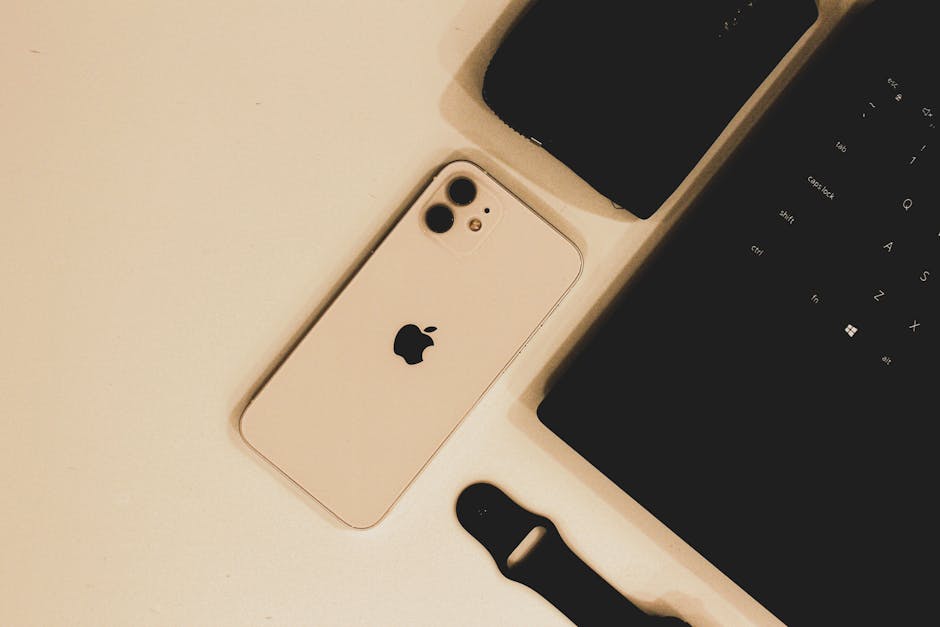
Now, let’s get into some more significant steps that involve decluttering your digital life and optimizing your phone’s resources for the long haul.
1. Uninstall Unused or Rarely Used Apps
Be honest with yourself: do you really need that app you downloaded for a one-time event last Diwali? Or that game you played for 10 minutes and never touched again? Every app takes up space and potentially runs background processes. Go through your app drawer and ruthlessly uninstall anything you don’t use. To do this, long-press an app icon and drag it to “Uninstall,” or go to Settings > Apps > See all apps and uninstall from there.
2. Disable or Debloat Pre-installed Apps (Bloatware)
Many phones, especially budget devices popular in India, come with pre-installed apps from the manufacturer or carrier (e.g., Mi Browser, Samsung Free, various promotional apps). These are often called “bloatware.” While you can’t always uninstall them without rooting your phone, you can often disable them:
- Go to Settings > Apps > See all apps.
- Find a bloatware app, tap on it, and look for the “Disable” option. If it’s grayed out, you can’t disable it.
- Disabling an app prevents it from running in the background and removes its icon from your app drawer.
3. Migrate Photos and Videos to Cloud Storage or External Media
Photos and videos are huge storage hogs. Given the prevalence of family events, festivals, and social sharing in India, our galleries fill up quickly. Consider:
- Google Photos: Offers excellent backup and synchronization. You can free up space on your device once photos are backed up.
- OneDrive or Dropbox: Other popular cloud storage solutions.
- External SD Card: If your phone supports it, move photos, videos, and some app data to an SD card. Remember to set your camera app to save directly to the SD card if possible.
- Transfer to PC/Laptop: Regularly offload your media to a computer or external hard drive.
4. Use ‘Lite’ Versions of Apps
Many popular apps have ‘Lite’ versions designed for lower-end phones and slower internet connections, making them perfect for budget Android users in India. These consume less data, storage, and RAM:
- Facebook Lite
- Messenger Lite
- YouTube Go
- Twitter Lite
- LinkedIn Lite
- Google Go
5. Clean Up Downloads and Other Files
Over time, your “Downloads” folder can become a digital graveyard of PDFs, APKs, and random files. Use a file manager app (like Google Files or the built-in file manager) to periodically review and delete unnecessary files. Google Files also has a “Clean” tab that suggests files to delete, including junk files and duplicates.
Software Optimizations: Keeping Your System Lean
Beyond decluttering, there are several software-level optimizations that can significantly improve your phone’s performance.
1. Keep Your Android OS and Apps Updated
Manufacturers and Google regularly release software updates that include performance enhancements, bug fixes, and security patches. While some older phones might not receive the latest Android versions, they often get security updates. Always install these updates when available. Similarly, keep your apps updated via the Google Play Store, as developers constantly optimize their apps for better performance and efficiency. According to Android Authority, regular updates are crucial for both security and performance.
2. Use a Lightweight Launcher
The default launcher on your phone (e.g., MIUI Launcher, One UI Home, OxygenOS Launcher) can sometimes be resource-intensive, especially if it’s packed with animations and widgets. Switching to a lightweight third-party launcher can make a noticeable difference:
- Nova Launcher: Highly customizable, yet relatively lightweight.
- Lawnchair: Offers a clean, Pixel-like experience.
- Action Launcher: Another popular option for speed and customization.
These launchers often use less RAM and CPU, resulting in a smoother user experience.
3. Explore Developer Options (Carefully!)
We already touched upon animation scales, but Developer Options offer a few more tweaks:
- Background process limit: Setting this to “At most 3 processes” or “At most 4 processes” can drastically limit what runs in the background. This can improve speed but might delay notifications from less frequently used apps.
- Force GPU rendering: This forces apps to use the GPU (graphics processing unit) for 2D drawing, which can sometimes improve UI performance.
Warning: Developer Options are intended for developers. Changing settings without understanding them can lead to unexpected behavior. If you’re unsure, stick to the animation scales and background process limit.
4. Disable Auto-Sync for Unnecessary Accounts
Many apps and accounts (Google, WhatsApp, email, social media) constantly sync data in the background. While essential for some, others might not need real-time syncing. Go to Settings > Accounts, select an account, and disable sync for services you don’t need constantly updated.
Hardware Considerations: When It’s Time for a Tough Decision
Sometimes, no amount of software optimization can overcome fundamental hardware limitations or degradation. If your phone is several years old, has minimal RAM (e.g., 2GB or 3GB), or a very old processor, its performance ceiling might simply be too low for today’s apps. Here are a few things to consider:
1. Check Battery Health
If your phone is slowing down and also experiencing poor battery life, a degraded battery might be the culprit. Some manufacturers (like Samsung) offer battery health checks in their settings. Third-party apps like AccuBattery can also provide insights. Replacing the battery from an authorized service center (especially for popular brands like Xiaomi or Samsung, whose service networks are widespread in India) can sometimes restore performance, as the phone stops throttling the CPU. However, evaluate if the cost of battery replacement is justified for an aging device.
2. The Age and Specifications of Your Device
An Android phone from 2018 or 2019, especially a budget model, with 3GB RAM and an entry-level Snapdragon 400 or MediaTek Helio P-series processor, will struggle with modern Android versions and apps in 2026. Apps are becoming more resource-intensive, and even light usage can tax older hardware. At some point, the hardware simply cannot keep up.
3. The Factory Reset: A Last Resort
If all else fails, a factory reset can often work wonders. This erases all data on your phone and restores it to its original factory state, wiping away all accumulated junk, corrupted files, and problematic settings. It’s like getting a brand-new phone software-wise.
- BACKUP EVERYTHING: This is crucial. Use Google Drive, Google Photos, or a PC to back up all your photos, videos, documents, contacts, and app data.
- Go to Settings > System > Reset options > Erase all data (factory reset).
- Follow the on-screen prompts.
After a factory reset, your phone should feel significantly faster. Reinstall only the essential apps you truly need.
Prevention is Better Than Cure: Maintaining Optimal Performance
Once you’ve sped up your phone, consistent habits can help keep it fast:
- Regular Cleanup: Periodically clear app caches and uninstall unused apps.
- Mindful App Installation: Only download apps you truly need from trusted sources (Google Play Store).
- Avoid Live Wallpapers and Excessive Widgets: These consume resources. Stick to static wallpapers and only essential widgets.
- Keep Fewer Home Screen Icons: A cluttered home screen can also subtly affect performance.
- Use a Good Quality Charger: While not directly related to speed, using a reliable charger and cable can help maintain battery health, which in turn affects performance.
Choosing Your Next Budget-Friendly Powerhouse (If an Upgrade is Needed)
If, after all your efforts, your old warrior simply can’t keep up, it might be time to consider an upgrade. For Indian users looking for a balance between performance and price, here are some popular options in 2026 that offer great value:
| Phone Model (Example) | Processor | RAM/Storage | Price (Approx. ₹) | Key Highlight for Speed | Typical Platform |
|---|---|---|---|---|---|
| Xiaomi Redmi Note 16 Pro | Qualcomm Snapdragon 7 Gen 3 | 8GB/128GB or 256GB | 18,000 – 22,000 | Excellent mid-range performance, balanced for gaming and daily use. | Amazon.in, Flipkart, Mi.com |
| Samsung Galaxy M57 5G | MediaTek Dimensity 8300 | 6GB/128GB or 8GB/256GB | 20,000 – 25,000 | Reliable performance, robust software support, great display. | Amazon.in, Flipkart, Samsung.com |
| Realme 13 Pro+ | Qualcomm Snapdragon 7s Gen 3 | 8GB/128GB or 12GB/256GB | 22,000 – 27,000 | Fast charging, smooth UI, strong multitasking capabilities. | Flipkart, Realme.com |
Note: Prices and specifications are illustrative for 2026 and subject to change. Always check the latest models and offers on Amazon.in or Flipkart.
Pros & Cons of Reviving Your Old Android Phone
Deciding whether to optimize your current phone or buy a new one involves weighing several factors. Here’s a look at the advantages and disadvantages of trying to speed up your existing device:
Pros of Optimising Your Current Phone:
- Cost-Effective: It’s free or very low cost compared to buying a new phone, which can range from ₹10,000 to ₹50,000+.
- Environmentally Friendly: Extends the lifespan of your device, reducing e-waste.
- Familiarity: You don’t have to learn a new interface or transfer all your data to a new device.
- Temporary Solution: Can buy you time until you can afford a better upgrade or until new models are released.
- Data Retention: You keep all your data on your device (though backups are always recommended).
Cons of Optimising Your Current Phone:
- Limited Long-Term Gains: If the hardware is truly old, software tweaks can only do so much. The phone might eventually slow down again.
- Still Potentially Slow: Even after optimization, a very old phone might not match the speed of modern budget devices.
- Missed New Features: You won’t get access to new hardware features (better cameras, faster processors, 5G capabilities) or the latest Android OS versions.
- Battery Degradation: Optimization doesn’t fix a physically degraded battery, which can still hamper overall user experience.
- Time and Effort: It requires time and effort to go through all the optimization steps, and results aren’t guaranteed for severely aged devices.
FAQ Section: Your Burning Questions Answered
What is the most effective way to speed up my Android phone?
The single most effective step for a severely slow phone is often a factory reset, but only after thoroughly backing up all your data. For less drastic slowdowns, regularly clearing app caches, uninstalling unused apps, and limiting background processes usually provide the best results. A combination of these methods will yield the best outcome.
Does clearing RAM actually help speed up a phone?
Yes, clearing RAM can help. While Android is designed to manage RAM efficiently, having too many apps running in the background can still consume valuable memory, forcing the system to constantly swap data, which leads to slowdowns. Manually closing unused apps or using the “Background process limit” in Developer Options can free up RAM and improve responsiveness, especially on phones with less RAM (e.g., 4GB or less).
Should I use a task killer app to speed up my phone?
Generally, no. Modern Android versions are designed to manage background apps much more efficiently than older versions. Task killer apps often consume more resources themselves and can interfere with Android’s built-in memory management, leading to a “kill-and-restart” cycle that actually drains battery and slows down your phone further. It’s better to manage apps through Android’s built-in settings.
How often should I factory reset my Android phone?
A factory reset is usually a last resort, not a regular maintenance task. You might consider it once every 1-2 years if your phone starts feeling consistently sluggish, even after applying other optimization techniques. It’s also a good idea if you’re selling or giving away your phone to ensure all your personal data is erased.
Will installing a custom ROM make my phone faster?
Installing a custom ROM (like LineageOS) can potentially make an older phone faster by replacing the manufacturer’s heavy UI with a lighter, stock Android experience, often without bloatware. However, it’s a complex process that voids your warranty, carries risks (like bricking your device), and requires significant technical know-how. For the average user, sticking to official software and optimization tips is recommended. As Gadgets360 often advises, custom ROMs are best left to advanced users.
Our Verdict
A slow Android phone is a common woe, but it doesn’t always mean you need to rush out and buy a new one. For the vast majority of users in India, applying the tips and tricks outlined in this guide – from simple restarts and cache clearing to more intensive app management and storage optimization – will significantly improve your phone’s performance. Start with the immediate fixes, then move on to deeper cleaning and software optimizations. Remember, consistency is key; regular maintenance can keep your device running smoothly for longer.
However, be realistic about your phone’s age and hardware limitations. If your device is truly ancient (5+ years old) with minimal RAM and an entry-level processor, even a factory reset might only offer temporary relief. In such cases, and especially if your battery health is severely degraded, investing in a new, budget-friendly smartphone (like the ones we highlighted) might be the most practical and satisfying solution for a truly zippy experience. Ultimately, the goal is to get the most out of your technology, whether that means reviving an old friend or welcoming a new companion.
Want more? Browse our latest smartphone reviews section.
About the Author